

Well, I’m finally writing my first post! I decided to start this blog about a year ago, and it’s embarrassing that I’m finally committing to Virtually Understood. You know how it is…like the Nationwide commercial that says “life comes at you fast”. Big thanks to my Colleague and Friend; Aaron for being a contributor. We look forward to more of his articles in the future. Off the soapbox now.
VMware just recently released the long awaited vSphere 6.0 the successor to vSphere 5.5. With numerous enhancements and features, I can envision many beginning to make the transition to vSphere 6.0. I think one of the biggest announcements/improvements is the VMware vCenter Server Appliance capabilities. In the past versions of vSphere we were required to install vCenter onto a Windows Based OS. In vSphere 5.0, VMware announced the first version of a Linux-based appliance version, but it had numerous limitations and was deemed not enterprise ready. We figured that the next few corresponding releases with address those limitations and scalability would be increased. However, it took until vSphere 6.0 to finally match the “full capabilities” of the Windows Based version. Which now gives large enterprises the ability to begin utilizing the appliance based vCenter – and many customers have been asking for it! Let’s review some of the new capabilities, and keep in mind, that these metrics apply to both Windows and VCSA.
– Hosts per Virtual Center = 1,000
– Powered-ON VMs per Virtual Center = 10,000
– Hosts Per Cluster = 64
– VMs per Cluster = 8,000
– Linked Mode = Yes
The only part that you need to be cognizant is that of the Database connections. Most customers are using Microsoft SQL for Windows as the primary ODBC source. The appliance does not have that capability to use Microsoft SQL databases, therefore, you must utilize the embedded Postgres or you can use Oracle. One of the more common questions I get about this is a migration path from vCenter on Windows to the VCSA. Unfortunately, there is no direct migration, however, the new “Cross-vCenter VMotion” offers you the flexibility to migrate to the new appliance without any downtime for Virtual Machines and Hosts. This will offer you flexibility and make it much easier than previous methods (cold migration).
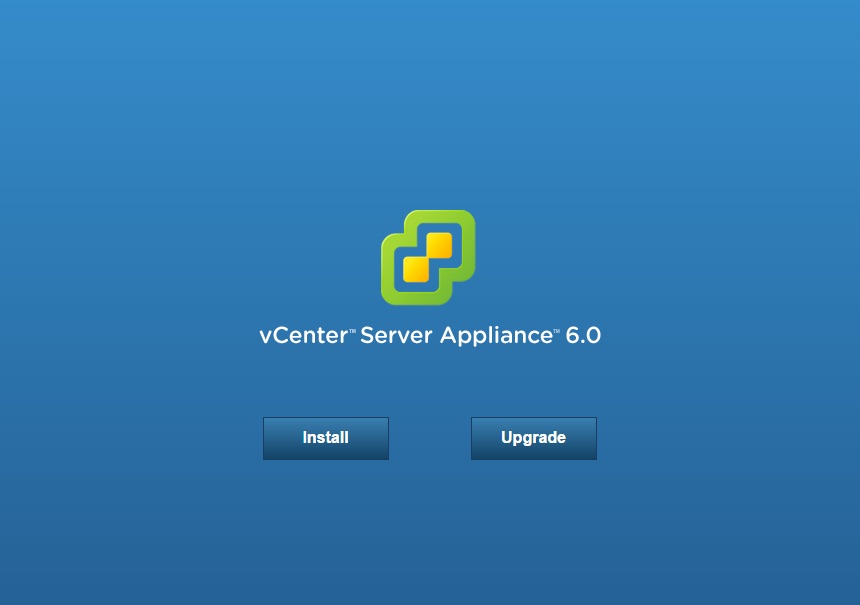
One thing I noticed was the new upgrade is so simple for updating your vCenter Appliance. You can execute a setup file and it will bring you to a web page that allows you to update your new appliance. You can access the setup file upon extracting the vCSA appliance to a directory on your computer. Once that is complete execute the setup file.
1. Click the “Upgrade” Button.
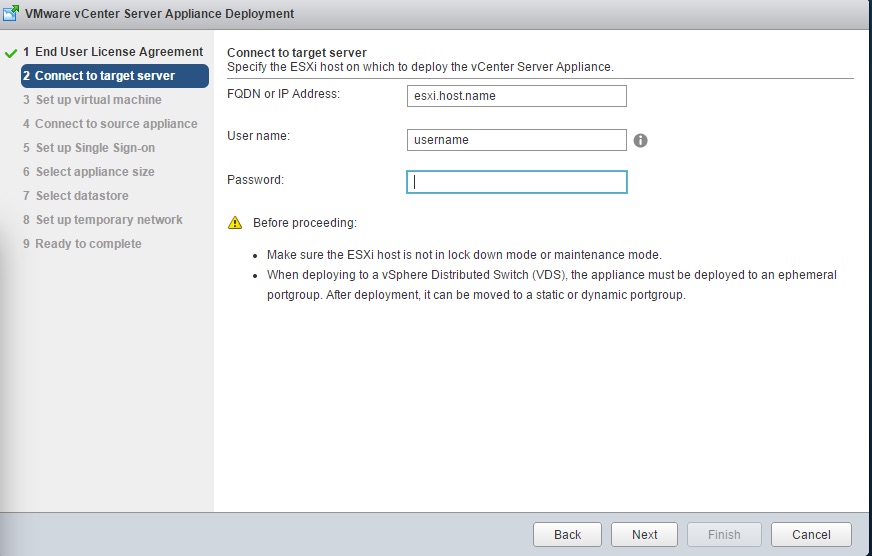
2. This will then initiate the “vCenter Server Appliance Deployment”
– Enter an ESXi host that you’d like to deploy the new vCenter Appliance too.
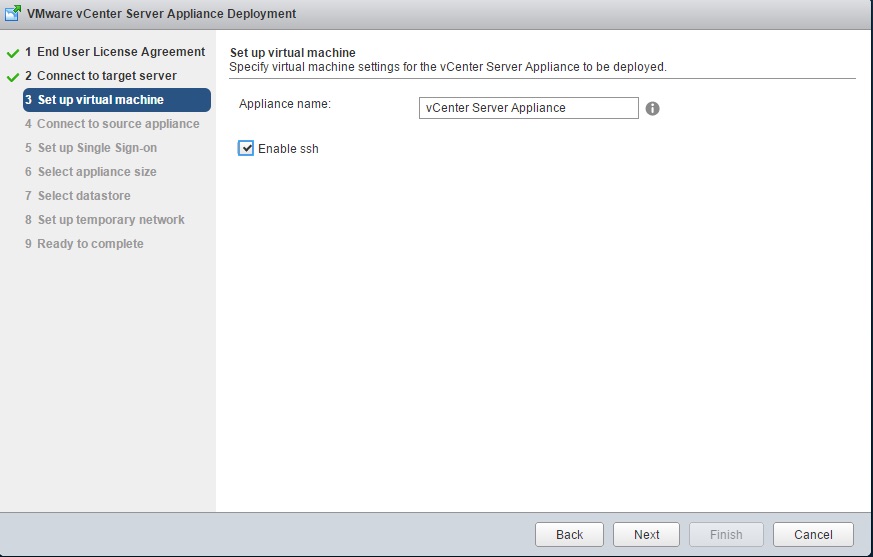
3. Next the appliance you will need to provide a name for the new vCenter Appliance instance. This is the only part that I didn’t like. My vCenter Server is named “vc01”. I could not deploy it with the same name… Therefore, I had to give it a different display name. Once this completed and I deleted the old vCenter 5.5 instance, I renamed it “vc01” in the gui and did a SVM to change files associated with it. Just let be known that this is the case.
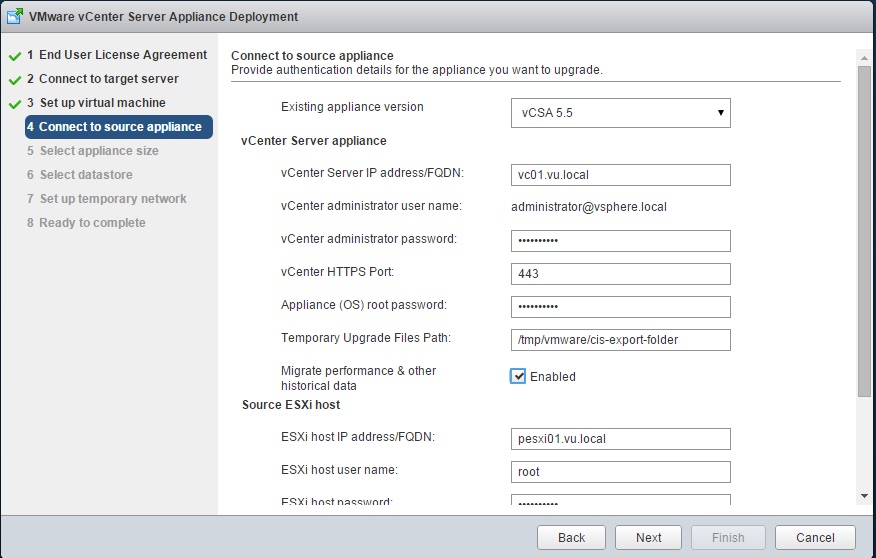
4. Next you will enter all your relevant information for the vCenter Upgrade.
5. Next choose your deployment option. Since this is my home lab, I want the smallest resource configuration model. 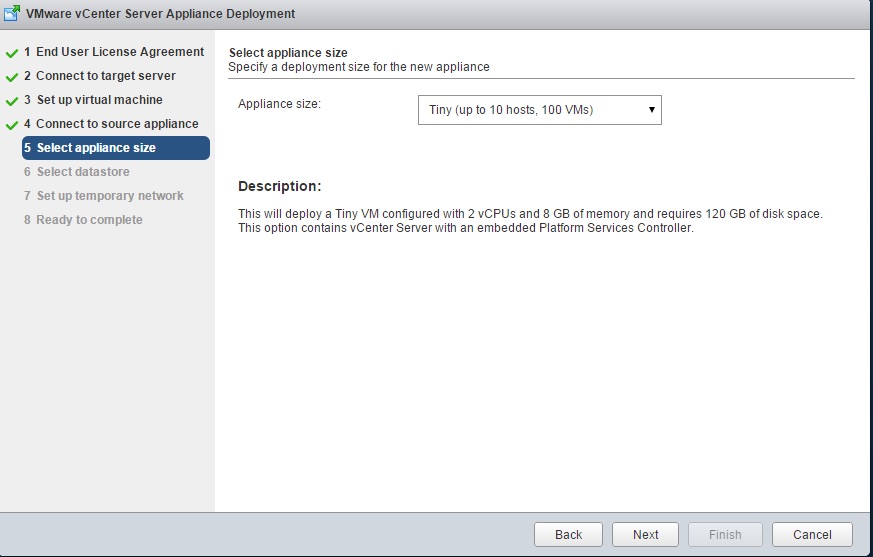
6. Next you will select a Datastore for the new appliance
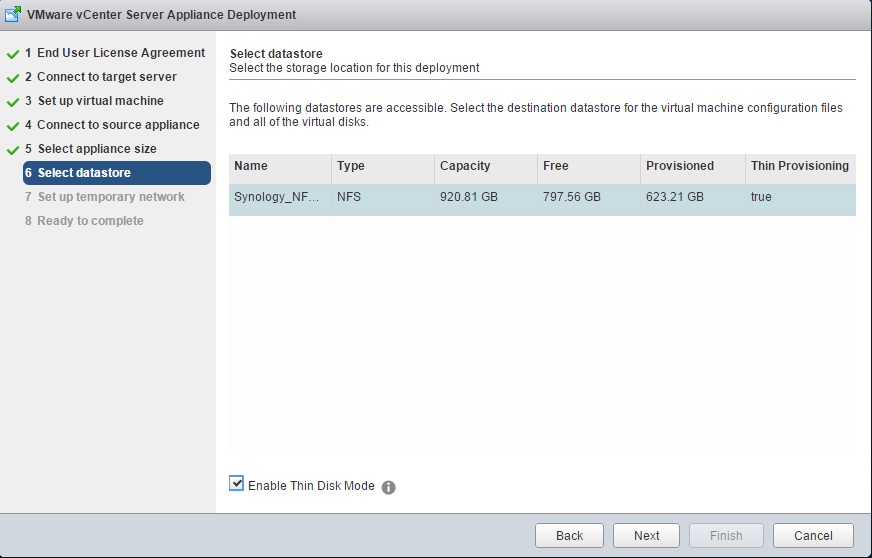
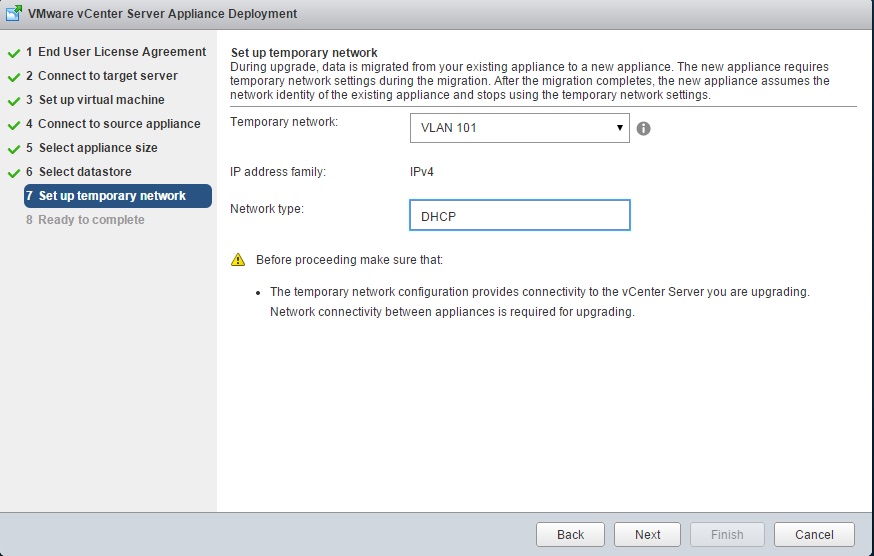
7. Next you will choose the network that you want to assign. I did DHCP network because as part of the migration the “actual IP and DNS name” will move to the new appliance.
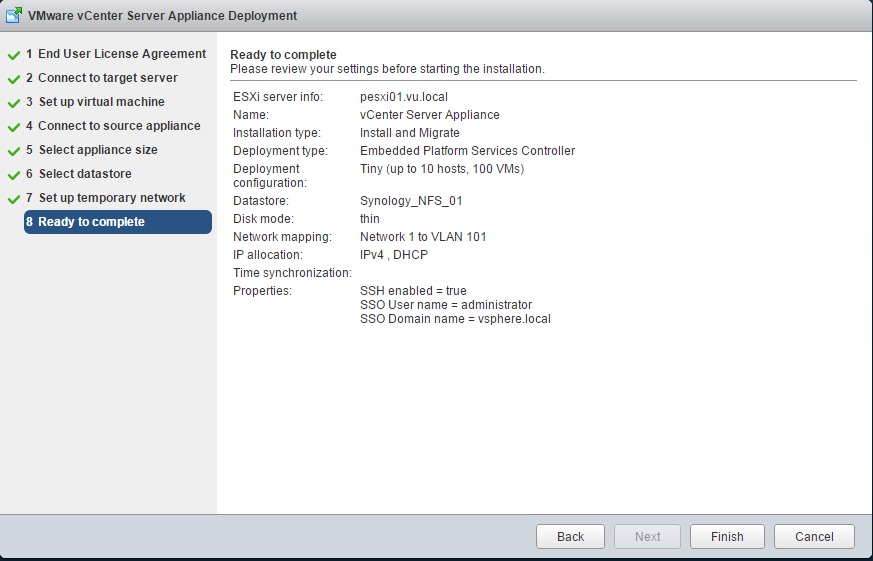
8. You are ready to deploy your new instance of the vCenter Appliance. Remember, your 5.5 instance is still operational and running. The information is going to begin the transfer to the new 6.0 appliance.
9. The Migration process begins!
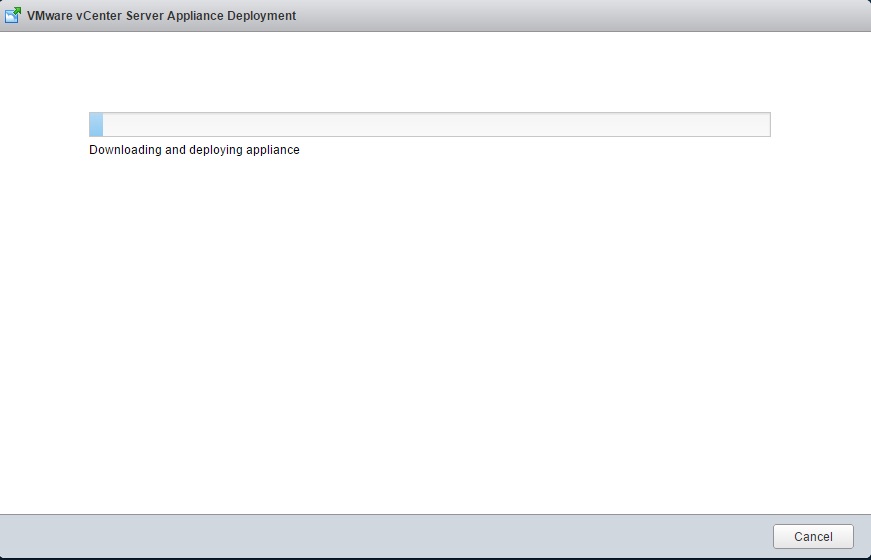
10. Once the migration completes, your new vCenter is online. Do remember that it will assume the new “VC01” dns name and IP information.
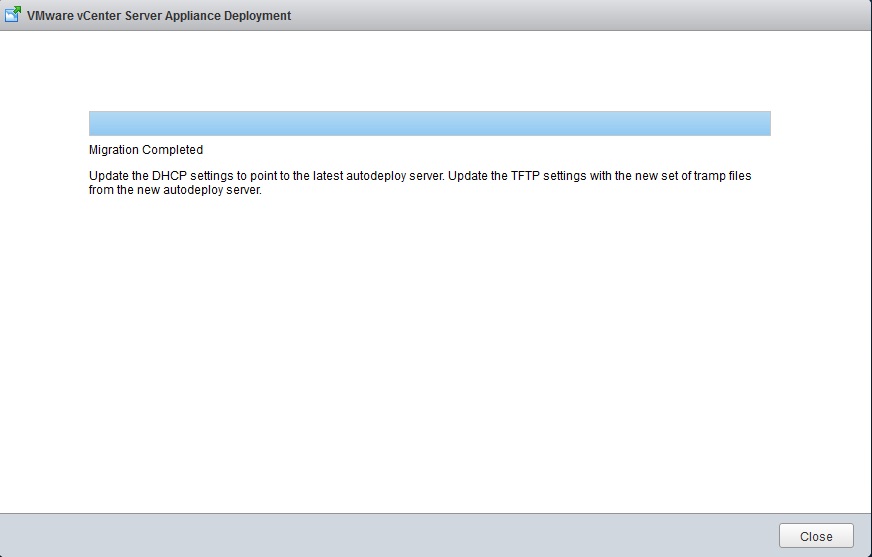
Overall, I think VMware has done a great job with the new upgrade process for VCSA! Definitely better than the previous versions. I do recommend that you try this in your lab first before a real production environment. Just to familiarize yourself with the process. It seems pretty seamless and easy!
By: Kirk Marty | vCloud Air Specialist
@vCaptain_Kirk
 Virtually Understood